What to Do If Scooter Tools Can't Find Your Scooter
Troubleshooting
What to do if Scooter Tools can't find your scooter
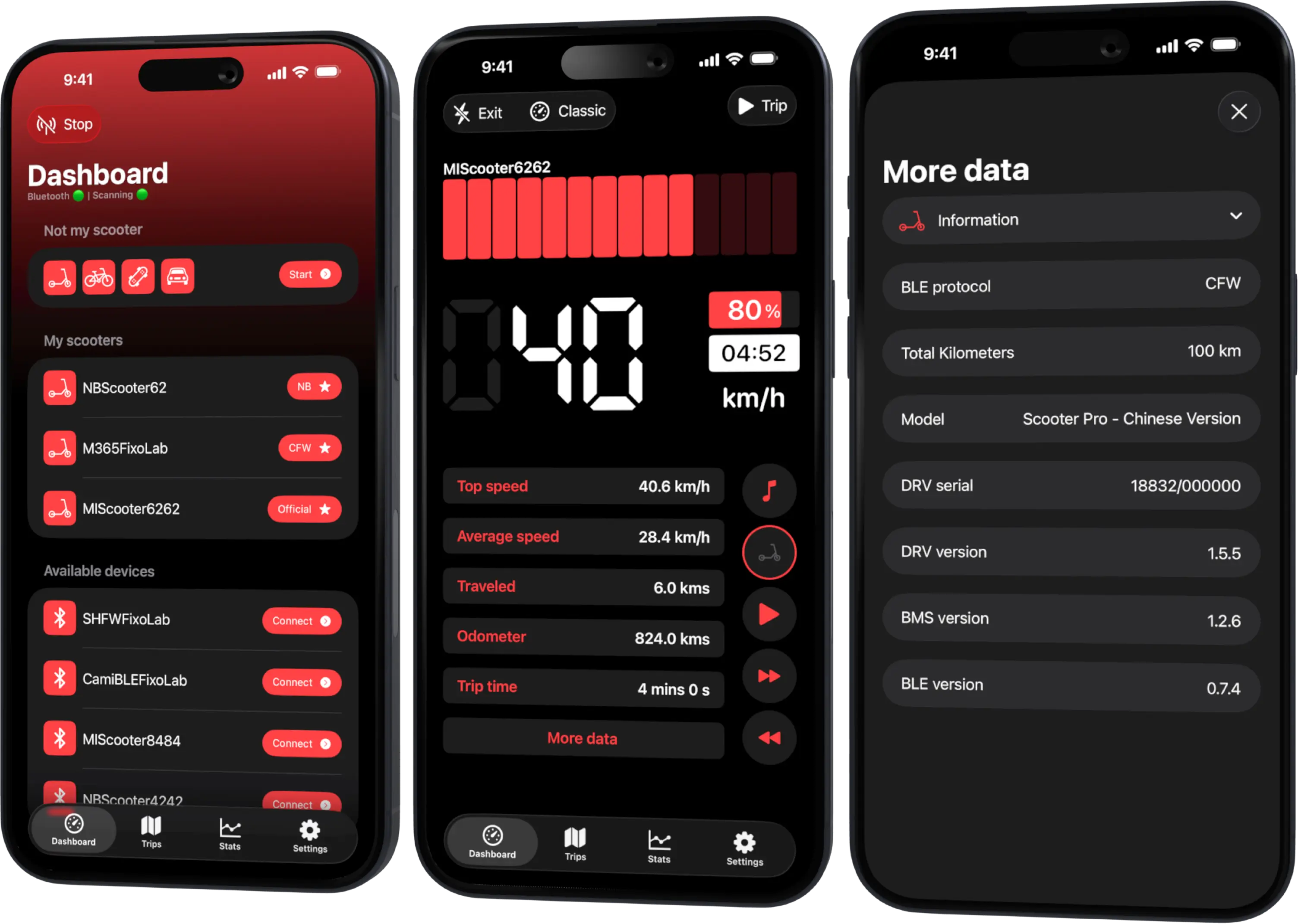
Confirm Bluetooth and location permissions are granted, that your scooter is powered on and within range, and that your exact model and firmware are verified — then re-scan.
Checklist before you re-scan
- Bluetooth turned on in your phone's settings
- Location permission granted to Scooter Tools
- The scooter powered on with its display or indicator active
- You're within a few meters of the scooter
Steps to try, in order
- 1
Check Bluetooth and location permissions
Both need to be granted for scanning to work correctly.
- 2
Move closer to the scooter
Bluetooth range can be affected by obstacles and distance.
- 3
Restart the scan
Close and reopen the scan rather than waiting on a stalled one.
- 4
Confirm your model and firmware are verified
Check the compatibility table for your exact combination.
What a clean re-scan looks like
- The scan restarts from a clean state, without leftover connection errors
- No app restart should be required for a normal re-scan
When this isn't a Scooter Tools issue
- A dead or very low scooter battery can prevent Bluetooth advertising entirely
- An unverified firmware combination may need to be reported for testing
If it still doesn't appear
Permissions look correct and the scooter is nearby, but nothing shows up
Power-cycle the scooter and try the scan again; if it still fails, check for a pending firmware update on the scooter that might not be verified yet.
Frequently asked questions
Do I need to unpair the scooter from other apps first?
No, Scooter Tools connects independently and doesn't require unpairing from manufacturer apps.
Could my phone's Bluetooth cache be the issue?
Restarting Bluetooth on your phone can help in rare cases where a scan appears stuck.
Recent posts
Confirm your model is verified
Check your exact scooter and firmware in the compatibility table.
Your Xiaomi and Ninebot scooter dashboard
Monitor speed, battery, mileage, temperature and routes in real time, with support for official and custom firmware
Available on Android, iPhone, iPad and Mac, with Wear OS support and iCloud sync on Apple devices