Bluetooth permissions for Scooter Tools on iOS and Android
Scooter Tools communicates locally with supported scooters over Bluetooth Low Energy. The operating system decides when an app may scan, connect and continue using Bluetooth, so a disabled permission can look like an incompatible scooter.
iOS and Android use different permission names and version-specific rules. Follow the current in-app explanation for the phone in front of you.

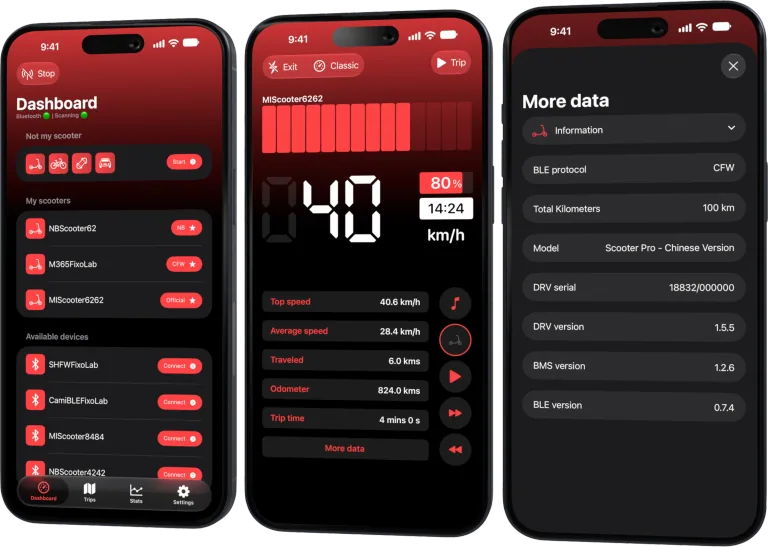
Your Xiaomi and Ninebot scooter dashboard
Monitor speed, battery, mileage, temperature and routes in real time, with support for official and custom firmware
Available on Android, iPhone, iPad and Mac, with iCloud sync on Apple devices
Bluetooth must be available
Confirm the phone supports BLE, Bluetooth is on and airplane or restriction settings are not blocking it. Keep the scooter awake and within close range during discovery.
Do not pair manually in system settings unless the exact scooter flow requires it. Many BLE devices are discovered and authenticated inside the app.
iOS permission model
iOS asks for Bluetooth access when the app first needs it. If denied, enable it later in Settings. Location is a separate permission used for mapped trips; granting Bluetooth does not automatically grant route recording.
Background behavior depends on app state and system policy. Force-quitting can prevent expected reconnection or recording.
Android permission model
Android requirements vary by OS version. Newer versions expose nearby-device Bluetooth permissions, while older scanning behavior may be tied to location permission. Device vendors can also apply aggressive battery restrictions.
Use the permission labels shown by the installed system and the current Scooter Tools guidance. Avoid tutorials written for an unrelated Android version.
A clean troubleshooting sequence
- Stop moving and place the phone near the awake scooter.
- Confirm Bluetooth and required permissions.
- Confirm no other app or phone owns the active connection.
- Return to Scooter Tools and start a clean scan.
- Select the correct protocol path for the model.
- Complete legitimate authentication if required.
- If it fails, record the user-facing error before restarting.
Repeatedly tapping connect can create overlapping attempts and hide the original cause.
Privacy and security
Bluetooth addresses, bind keys, tokens, serials and raw frames can identify a scooter or grant access. Do not post them in forums or screenshots. Logs for ordinary support should redact those fields.
The Scooter Tools API is not in the BLE control path; connection stays between phone and vehicle.
When the scooter still does not appear
Check the exact model on the compatibility page, close another official or third-party app that may be connected, and follow what to do when Scooter Tools cannot find the scooter.
If the vehicle is account-bound, resolve ownership in the official provider flow rather than bypassing it.
Frequently asked questions
Why does Android mention nearby devices or location?
The required permission category depends on the Android version and scanning API.
Does iOS system pairing need to show the scooter?
Not necessarily. Many BLE workflows happen inside the app.
Can two apps connect at once?
Often the active BLE connection or authentication is exclusive. Close the other app during diagnosis.
Does permission grant compatibility?
No. It allows scanning or connection attempts; model, firmware and authentication must also be supported.
Your Xiaomi and Ninebot scooter dashboard
Monitor speed, battery, mileage, temperature and routes in real time, with support for official and custom firmware
Available on Android, iPhone, iPad and Mac, with iCloud sync on Apple devices
| FixoLab
Why BLE Scooter Control Stays Private and Local to Your Phone
Why the connection between Scooter Tools and your scooter is a direct Bluetooth link with no cloud step involved, and exactly where your scooter data actually goes.
| FixoLab
How to keep scooter trip recording working in the background
Reduce missing scooter trip data by preparing location, Bluetooth, battery settings and app state before locking the phone or switching apps.
| FixoLab
Location permissions for scooter trip recording explained
Understand why trip maps need location access, how precise and background permissions affect recording and how to protect route privacy.
| FixoLab
How to export scooter trip data without exposing private routes
Prepare a useful scooter trip export or support sample while protecting home, work, timestamps, device identifiers and Bluetooth credentials.