A Complete Walkthrough for Setting Up Scooter Tools for the First Time
Getting started
How do I set up Scooter Tools for the first time?
Install the app, grant Bluetooth and location permissions, scan for your scooter, and connect — no account creation required to get your first dashboard reading.
What you need
- Scooter Tools installed on iOS or Android
- A compatible Xiaomi or Ninebot scooter, powered on and nearby
- Bluetooth and location permissions ready to grant
First-time setup, step by step
- 1
Install Scooter Tools
Download it from the App Store or Google Play.
- 2
Grant Bluetooth and location permissions
Both are needed for scanning to find your scooter.
- 3
Power on your scooter
Make sure it's within Bluetooth range.
- 4
Scan and select your scooter
Compatible models are recognized automatically.
- 5
Confirm pairing, if prompted
Some scooters ask for a one-time confirmation.
- 6
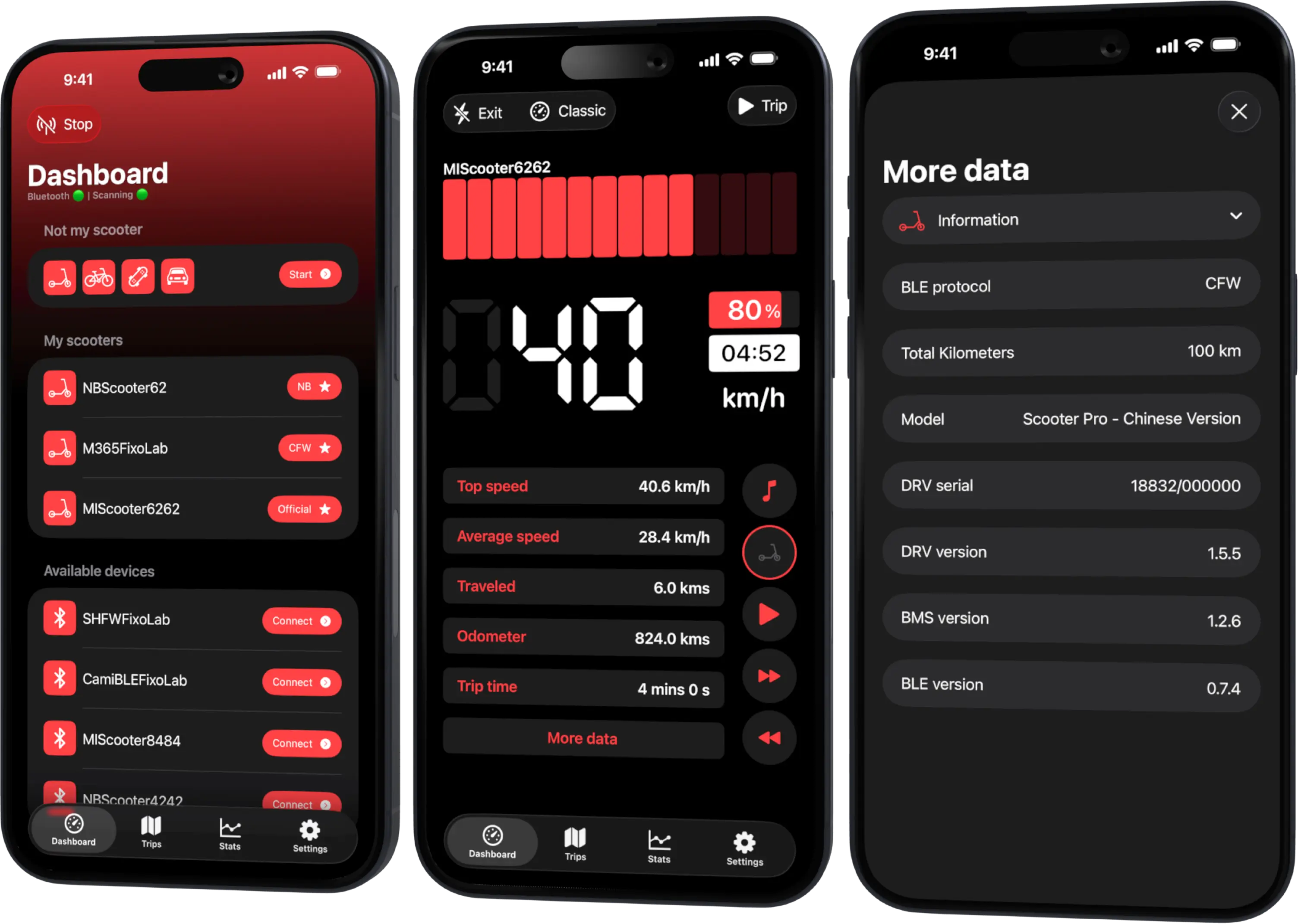
Explore your dashboard
Check speed, battery, range and trip history once connected.
What you'll have set up
- A working Bluetooth connection to your scooter
- Your first live dashboard reading
- Trip history ready to start recording
Good to know
- Some Xiaomi/Ninebot models may ask for a one-time pairing confirmation on the scooter
- Exact available fields depend on your model and firmware
Troubleshooting
My scooter isn't found on the first scan
Double-check Bluetooth and location permissions, and that the scooter is powered on and within a few meters.
Frequently asked questions
Do I need to create an account first?
No, you can connect a scooter and use the dashboard without an account.
Can I set up more than one scooter?
Yes, Scooter Tools can save and switch between multiple compatible scooters.
Check your scooter is compatible
Confirm your exact model and firmware before you start.
Your Xiaomi and Ninebot scooter dashboard
Monitor speed, battery, mileage, temperature and routes in real time, with support for official and custom firmware
Available on Android, iPhone, iPad and Mac, with Wear OS support and iCloud sync on Apple devices
| FixoLab
How to Connect and Monitor a Compatible Ninebot Scooter
Pair a compatible Ninebot or Segway scooter with Scooter Tools over Bluetooth and start monitoring speed, battery and range, no manufacturer account needed.
| FixoLab
Connect a Xiaomi Scooter on Official Firmware to Scooter Tools
How to pair a Xiaomi or Mi Electric Scooter running Official firmware with Scooter Tools over Bluetooth — no Mi account needed.
| FixoLab
Quick Start Guide (For Xiaomi and Ninebot owners)
A five-minute Xiaomi and Ninebot quick start: scan, connect, let Scooter Tools detect Official, CFW or NB, and verify the live dashboard.
| FixoLab
What to Do If Scooter Tools Can't Find Your Scooter
How to fix it when Scooter Tools can't find your scooter: check that Bluetooth, location and your scooter are powered on and in range, verify your model, then re-scan.