How to keep scooter trip recording working in the background
A trip can look healthy in the foreground and develop gaps after the phone locks. Mobile operating systems limit background work to protect battery and privacy, while Bluetooth distance, app termination and permission changes add more failure points.
No setting can guarantee an uninterrupted recording in every condition, but a short pre-ride check prevents many avoidable gaps.
Your Xiaomi and Ninebot scooter dashboard
Monitor speed, battery, mileage, temperature and routes in real time, with support for official and custom firmware
Available on Android, iPhone, iPad and Mac, with Wear OS support and iCloud sync on Apple devices
Before the ride
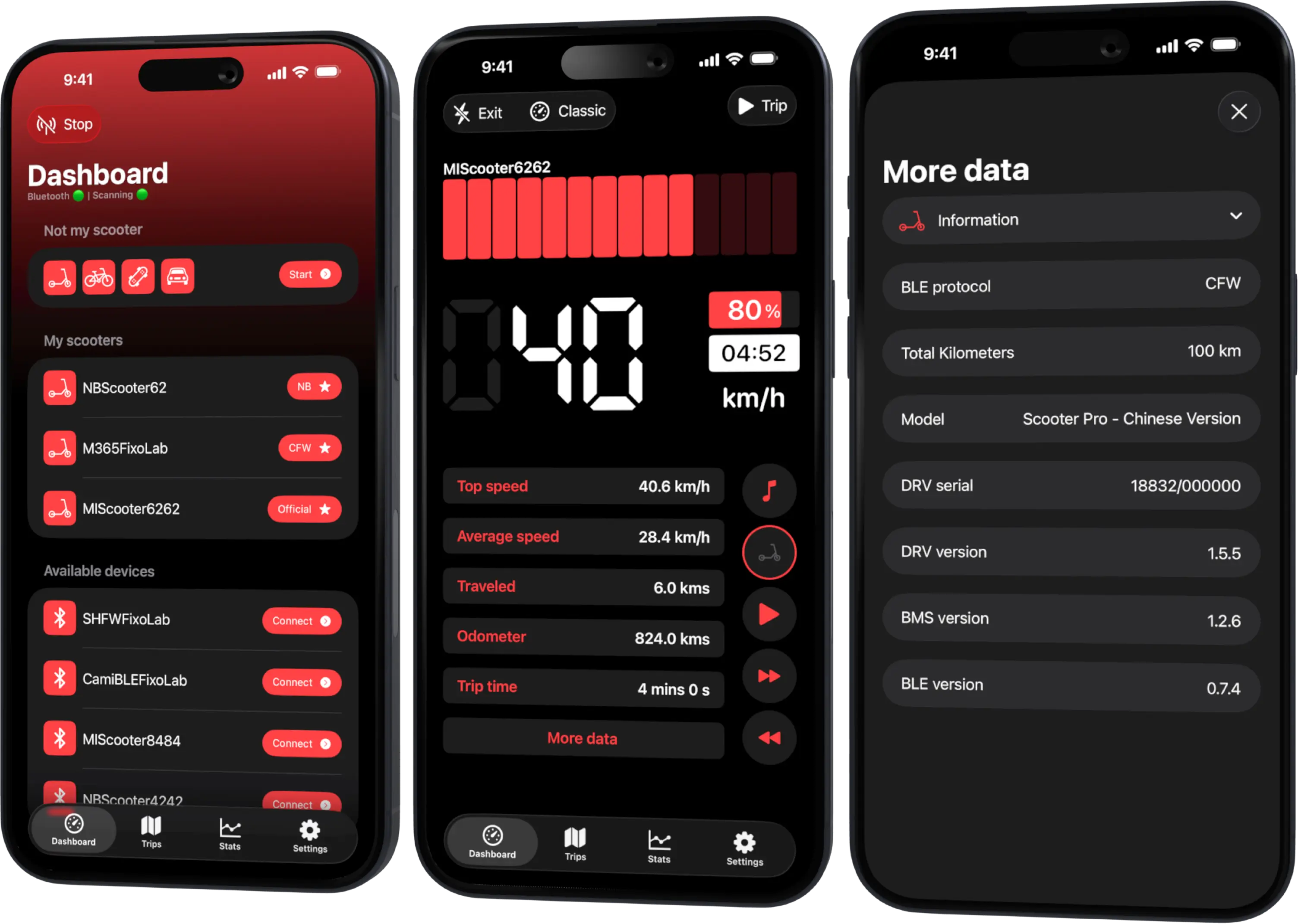
Confirm that the intended scooter is connected and live values update. Open the trip screen, verify location accuracy and start recording before moving. Check that the app shows the active session state.
If the platform requests background or precise location for the chosen feature, grant only the required level. On Android, review any documented battery-optimization exception for the current version.
Locking the phone
Use the normal lock flow rather than swiping the app away. Force-quitting usually tells the operating system that the app should stop. Keep the phone charged enough for Bluetooth, location and screen wake events during the full journey.
Extreme low-power modes can reduce location updates. Test their effect before an important recording.
Keep the phone with the rider
Bluetooth range and body position matter. A phone buried under dense cargo or left behind cannot maintain the same connection. Mounts must not require unsafe interaction or block vehicle controls.
Never manipulate the app while moving. Stop safely before checking a session.
Recognize a broken session
Possible signs include frozen live values, a disconnected indicator, a map that stops extending or elapsed time that no longer changes. Stop in a safe place and follow the app’s reconnection flow.
Do not cycle connection buttons repeatedly while riding. A clean rescan is safer and produces clearer diagnostic context.
After the ride
Open Scooter Tools before ending the session. Confirm final distance and duration, stop deliberately and wait for the record to appear. If data is incomplete, note when the gap began and whether the phone locked, changed power mode or lost Bluetooth.
Avoid editing the record before capturing a redacted diagnostic summary.
Troubleshooting order
- Confirm current app and OS versions.
- Review Bluetooth and location permissions.
- Check precision and background access.
- Review battery optimization and low-power state.
- Confirm the app was not force-quit.
- Test a short route in open conditions.
- Compare foreground and locked-screen results.
Reinstallation comes last because it can remove evidence and reset the very permissions you need to inspect.
Platform expectations
iOS and Android do not schedule background work identically, and current Scooter Tools features are not identical on both platforms. Diagnose the platform actually used rather than promising parity from a guide.
Read location permissions for trip recording for the permission model.
Frequently asked questions
Should I swipe Scooter Tools away after starting?
No. Force-quitting can terminate the session.
Does keeping the screen on guarantee recording?
No, but it can help isolate whether the interruption is specifically related to background state.
Why did Bluetooth remain connected but the map stop?
Location sampling and Bluetooth telemetry are separate paths with separate permissions and restrictions.
Can a widget replace trip recording?
No. Widgets show glanceable snapshots and do not provide a continuous route recorder.
Your Xiaomi and Ninebot scooter dashboard
Monitor speed, battery, mileage, temperature and routes in real time, with support for official and custom firmware
Available on Android, iPhone, iPad and Mac, with Wear OS support and iCloud sync on Apple devices
| FixoLab
Location permissions for scooter trip recording explained
Understand why trip maps need location access, how precise and background permissions affect recording and how to protect route privacy.
| FixoLab
How to export scooter trip data without exposing private routes
Prepare a useful scooter trip export or support sample while protecting home, work, timestamps, device identifiers and Bluetooth credentials.
| FixoLab
Why BLE Scooter Control Stays Private and Local to Your Phone
Why the connection between Scooter Tools and your scooter is a direct Bluetooth link with no cloud step involved, and exactly where your scooter data actually goes.
| FixoLab
How to compare scooter rides and battery efficiency
Use repeatable routes and Scooter Tools trip data to compare battery use without confusing weather, speed, elevation or payload with battery degradation.