Quick Start Guide (For Xiaomi and Ninebot owners)
Connect a Xiaomi or Ninebot scooter in five minutes
This is the short route for owners who already have Scooter Tools installed. If you are installing the app for the first time or want the permissions explained, use the complete first-time setup guide.
Before you scan
- Confirm your exact model and firmware in the compatibility checker, then power on the scooter and keep your phone nearby.
- Turn on Bluetooth and grant Scooter Tools location permission so the scan can find nearby devices.
- You do not need a Mi, Xiaomi, Ninebot or Segway account for this local Bluetooth connection.
Quick connection
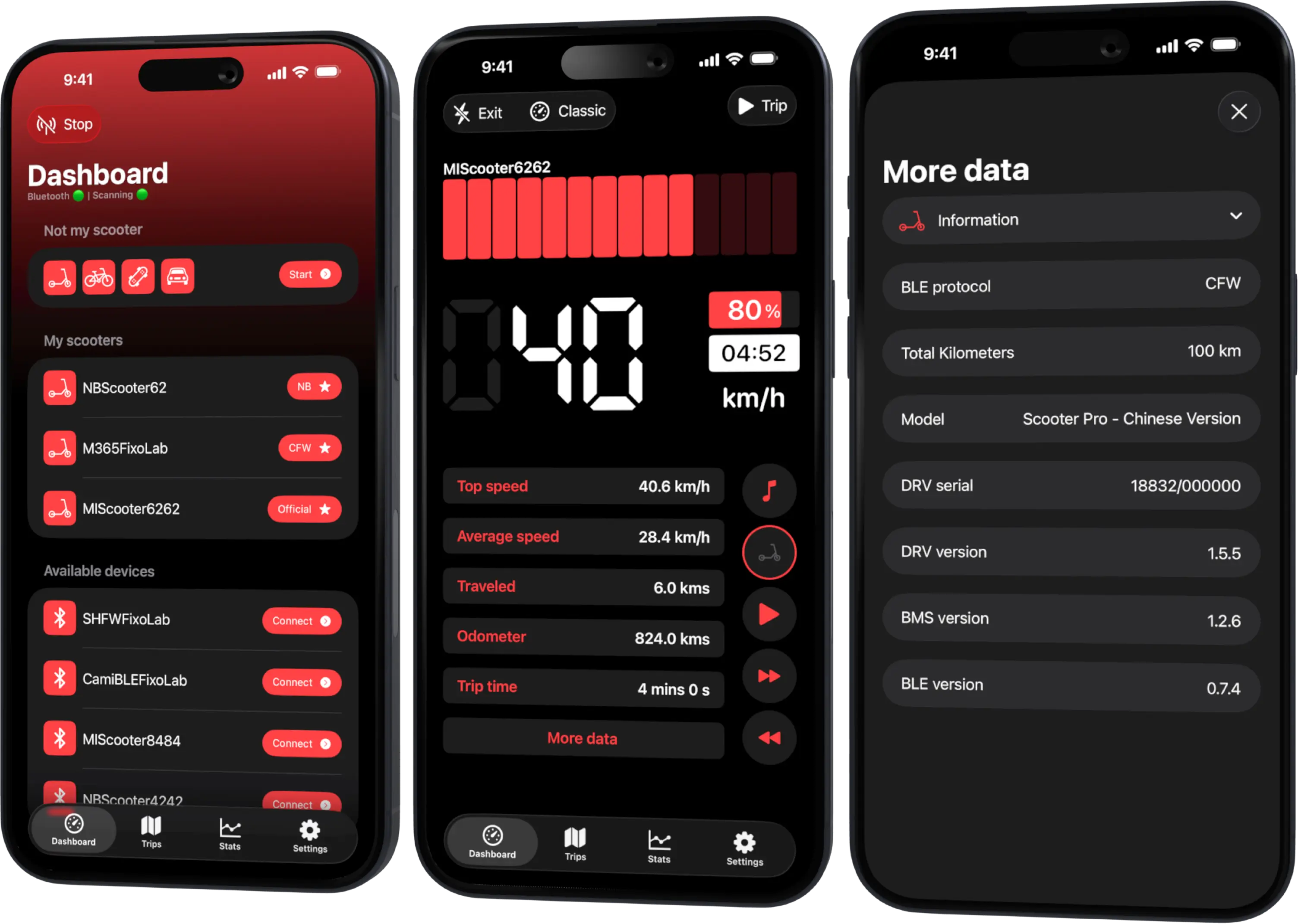
- Open Scooter Tools and start a scan.
- Select the Xiaomi, Ninebot or Segway model identified in the results.
- Confirm the one-time pairing prompt on the scooter if it appears.
- Let Scooter Tools detect Official, CFW or NB automatically; there is no protocol mode to choose manually.
- Check that speed, battery and estimated range update on the live dashboard.
If the scooter does not appear
Return to the scan, move the phone closer, recheck both permissions and power-cycle the scooter. Then follow the scooter-not-found checklist or the clean reconnection flow instead of repeatedly tapping the same failed connection.
What a successful quick start looks like
Live values update, the correct scooter remains selected and trip history is ready to record locally. The fields available can vary by model and firmware, so the compatibility checker remains the source of truth.
Your Xiaomi and Ninebot scooter dashboard
Monitor speed, battery, mileage, temperature and routes in real time, with support for official and custom firmware
Available on Android, iPhone, iPad and Mac, with Wear OS support and iCloud sync on Apple devices
| FixoLab
How to Connect and Monitor a Compatible Ninebot Scooter
Pair a compatible Ninebot or Segway scooter with Scooter Tools over Bluetooth and start monitoring speed, battery and range, no manufacturer account needed.
| FixoLab
Connect a Xiaomi Scooter on Official Firmware to Scooter Tools
How to pair a Xiaomi or Mi Electric Scooter running Official firmware with Scooter Tools over Bluetooth — no Mi account needed.
| FixoLab
A Complete Walkthrough for Setting Up Scooter Tools for the First Time
How to set up Scooter Tools for the first time: install the app, grant Bluetooth and location permissions, scan for your scooter and connect: no account required.
| FixoLab
What Custom Firmware (CFW) Changes for Monitoring in Scooter Tools
Understand what CFW (custom firmware) means for Scooter Tools monitoring and compatibility — it only reads data, it never installs or modifies firmware.