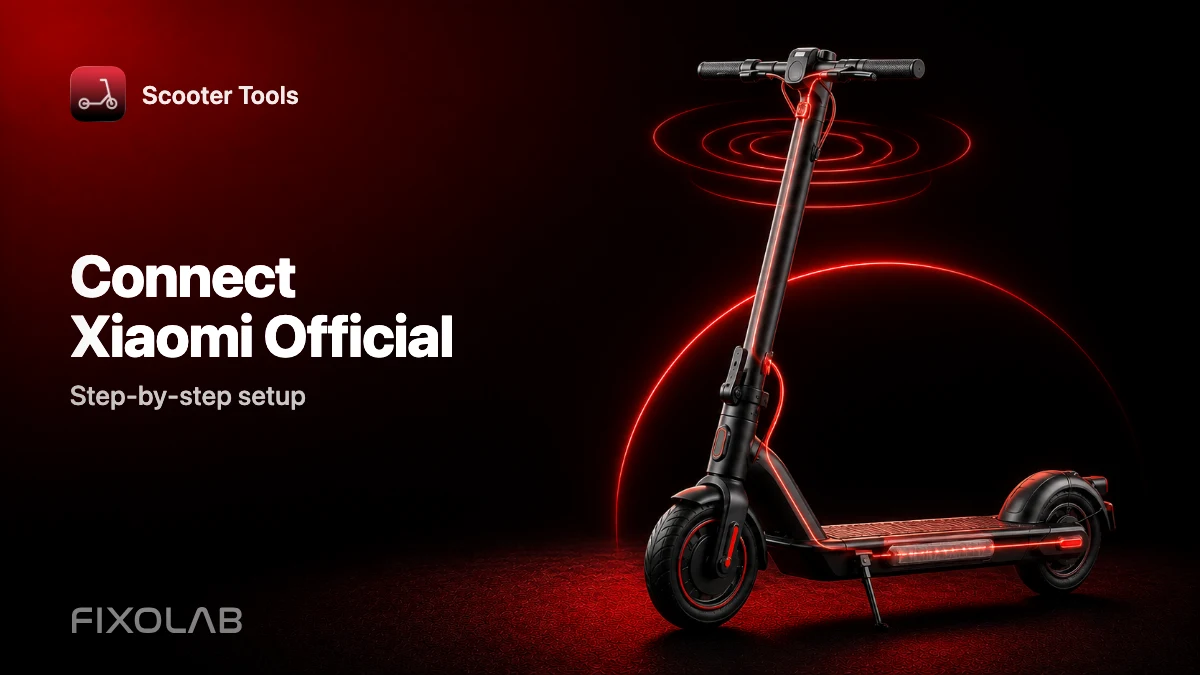
Connect a Xiaomi Scooter on Official Firmware to Scooter Tools
Connection guide
How do I connect a Xiaomi scooter running Official firmware?
Open Scooter Tools, scan, select your scooter, and confirm pairing if prompted — most Xiaomi scooters on Official firmware connect in under a minute, with no Mi account needed.
Before you start
- A verified Xiaomi model running Official firmware (see the compatibility table)
- Bluetooth and location permission enabled on your phone
- Scooter Tools installed on iOS or Android
- The scooter powered on and within Bluetooth range
Step-by-step connection
- 1
Power on your scooter
Make sure the display or indicator light is active before scanning.
- 2
Open Scooter Tools and start a scan
The app lists nearby compatible scooters as it finds them.
- 3
Select your scooter from the list
It's identified by its model once Scooter Tools reads the initial Bluetooth handshake.
- 4
Confirm the pairing prompt on the scooter
Some Official-firmware scooters show a one-time confirmation on their own display.
- 5
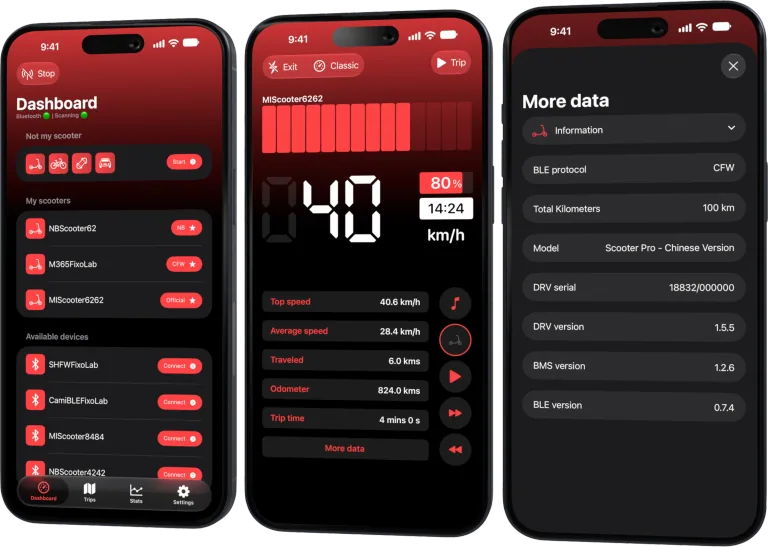
Check your live dashboard
Speed, battery, estimated range and ride mode should update within a couple of seconds.
What you'll see right away
- Live speed and battery percentage
- Estimated range for the current battery level
- Current ride mode
- Trip history saved locally on your phone
Good to know
- Exact fields available can vary slightly between Xiaomi models
- A very recent Official firmware update may take some time to get verified
- Scooter Tools doesn't change any settings on the scooter during pairing
Troubleshooting
The scooter doesn't appear in the scan
Confirm Bluetooth and location permissions are granted and that the scooter is powered on and nearby. Move closer and re-scan.
Pairing confirmation doesn't appear on the scooter
Some models don't require a confirmation step at all — if the dashboard already updates with live data, the connection succeeded.
The connection drops during a ride
Reopen Scooter Tools and scan again; it reconnects cleanly without needing to restart the scooter.
Local only, by design
This entire connection happens directly between your phone and the scooter over Bluetooth. No account, no cloud step, and no data about your scooter or rides is required to make the pairing work.
Frequently asked questions
Do I need to disable the Mi Home app first?
No, Scooter Tools connects independently and doesn't conflict with Mi Home being installed.
Can I connect more than one Xiaomi scooter?
Yes, Scooter Tools can remember and switch between multiple saved scooters.
What if my exact firmware version isn't listed?
Check the compatibility table — new verified combinations are added as they're tested.
Check full Xiaomi compatibility
See every verified Xiaomi model and firmware combination.

Your Xiaomi and Ninebot scooter dashboard
Monitor speed, battery, mileage, temperature and routes in real time, with support for official and custom firmware
Available on Android, iPhone, iPad and Mac, with iCloud sync on Apple devices
| FixoLab
Quick Start Guide (For Xiaomi and Ninebot owners)
A five-minute Xiaomi and Ninebot quick start: scan, connect, let Scooter Tools detect Official, CFW or NB, and verify the live dashboard.
| FixoLab
How to Connect and Monitor a Compatible Ninebot Scooter
Pair a compatible Ninebot or Segway scooter with Scooter Tools over Bluetooth and start monitoring speed, battery and range, no manufacturer account needed.
| FixoLab
A Complete Walkthrough for Setting Up Scooter Tools for the First Time
How to set up Scooter Tools for the first time: install the app, grant Bluetooth and location permissions, scan for your scooter and connect: no account required.
| FixoLab
Choosing the Right Protocol Mode for Your Scooter
Why you don't need to choose a protocol mode yourself: Scooter Tools detects Official, CFW or NB automatically during scan and connection.